
How to Download iOS 27 Beta on Your iPhone
Apple has introduced iOS 27, and the developer beta is now available for users who want early access. In this guide, you will learn how to enable iOS 27 Developer Beta on your iPhone, what beta software means, and what to know before installing it.
What Is iOS 27 Beta?
Early Access to Apple’s Next iPhone Software
iOS 27 Beta is an early version of Apple’s next major iPhone software update. It allows users and developers to test new features before the final public release becomes available.
However, a beta version is not the same as the stable version most people receive later through a normal software update. Because it is still being tested, it may contain bugs, performance issues, battery problems, and app compatibility errors.
“Beta software gives you early access, but it may not be stable enough for everyday use.”
Therefore, iOS 27 Beta is best for users who understand the risks and want to test new Apple features early.
Should You Install iOS 27 Beta?
It Depends on Your iPhone and Your Needs
If you enjoy testing new iPhone features early, iOS 27 Beta can be exciting. You may get access to new design changes, Siri AI improvements, Apple Intelligence features, and other updates before the official release.
However, if your iPhone is your main daily device, you should be careful. Beta software can affect battery life, app performance, notifications, banking apps, Bluetooth, CarPlay, and other important features.
Why Beta Software May Not Be Good for Daily Use
A beta version is still under development. As a result, some apps may crash, some features may not work correctly, and the phone may feel less reliable than usual.
In addition, beta updates can require a large amount of storage. If your iPhone does not have enough free space, the update may not download or install properly.
Before You Download iOS 27 Beta
Prepare Your iPhone First
Before starting the update process, make sure your iPhone is ready. This can help reduce problems during installation.
- Back up your iPhone using iCloud or a computer.
- Make sure your iPhone has enough free storage.
- Connect your iPhone to Wi-Fi.
- Keep your battery charged or connect your iPhone to power.
- Make sure your Apple ID is eligible for beta updates.
Once your iPhone is ready, you can enable iOS 27 Developer Beta from the Software Update settings.
Step 1: Open Settings
Start From the Settings App
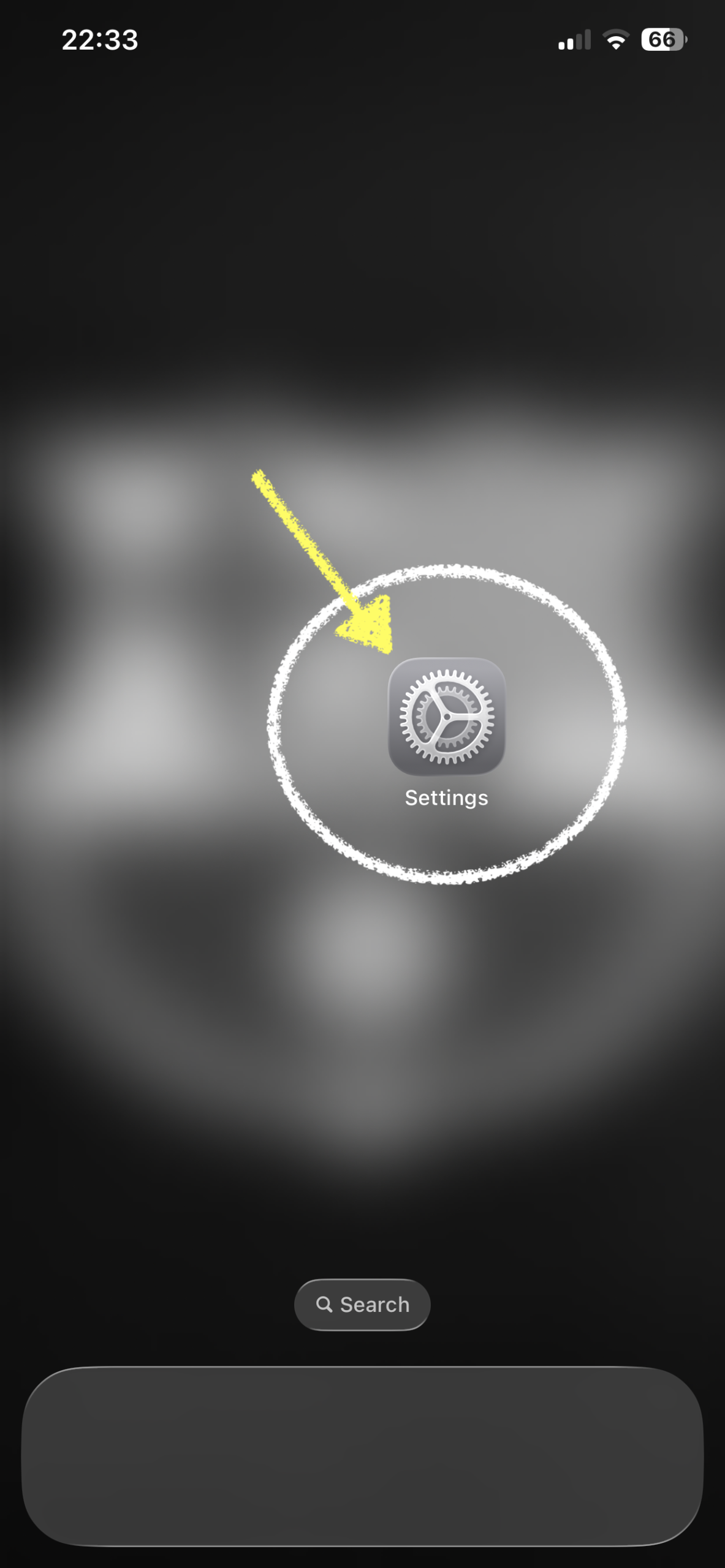
First, open the Settings app on your iPhone. This is where you manage system updates, Apple ID settings, Wi-Fi, battery, privacy, and other iPhone controls.
Step 2: Go to General
Open the Main System Settings
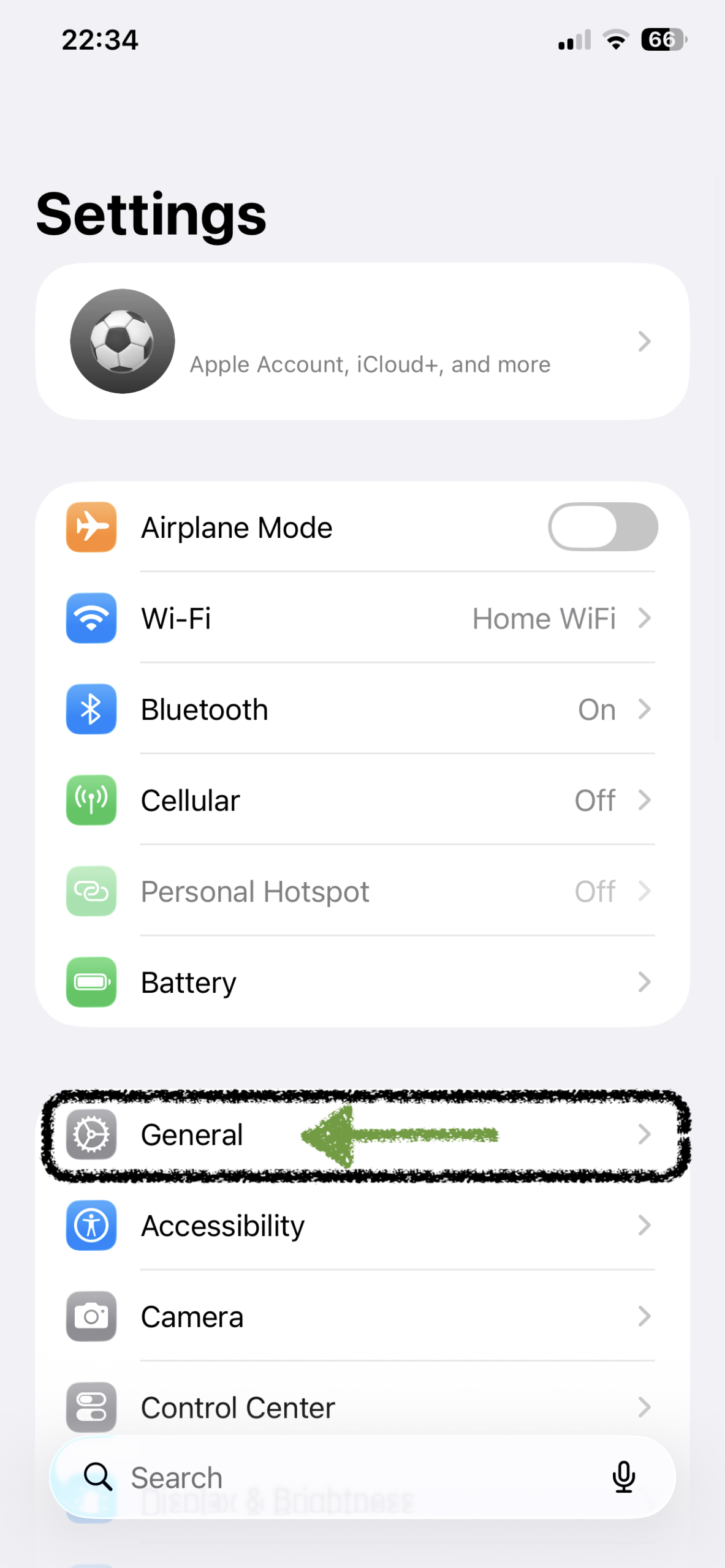
Next, scroll down and tap General. This section includes important iPhone settings such as Software Update, About, AirDrop, iPhone Storage, and more.
Step 3: Tap Software Update
Open the Update Page
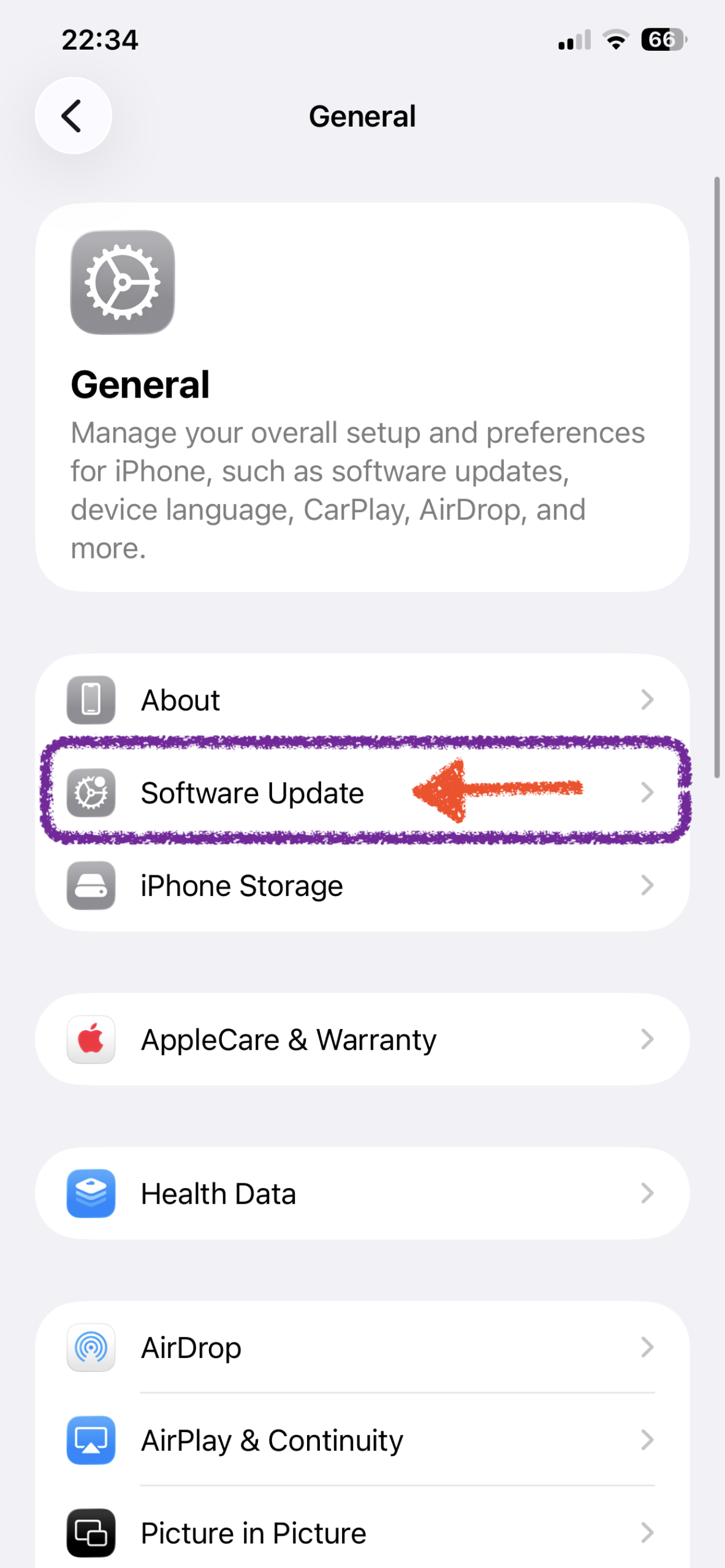
Inside General, tap Software Update. This is where your iPhone checks for available iOS updates, including stable releases and beta versions.
Step 4: Open Beta Updates
Find the Beta Update Menu
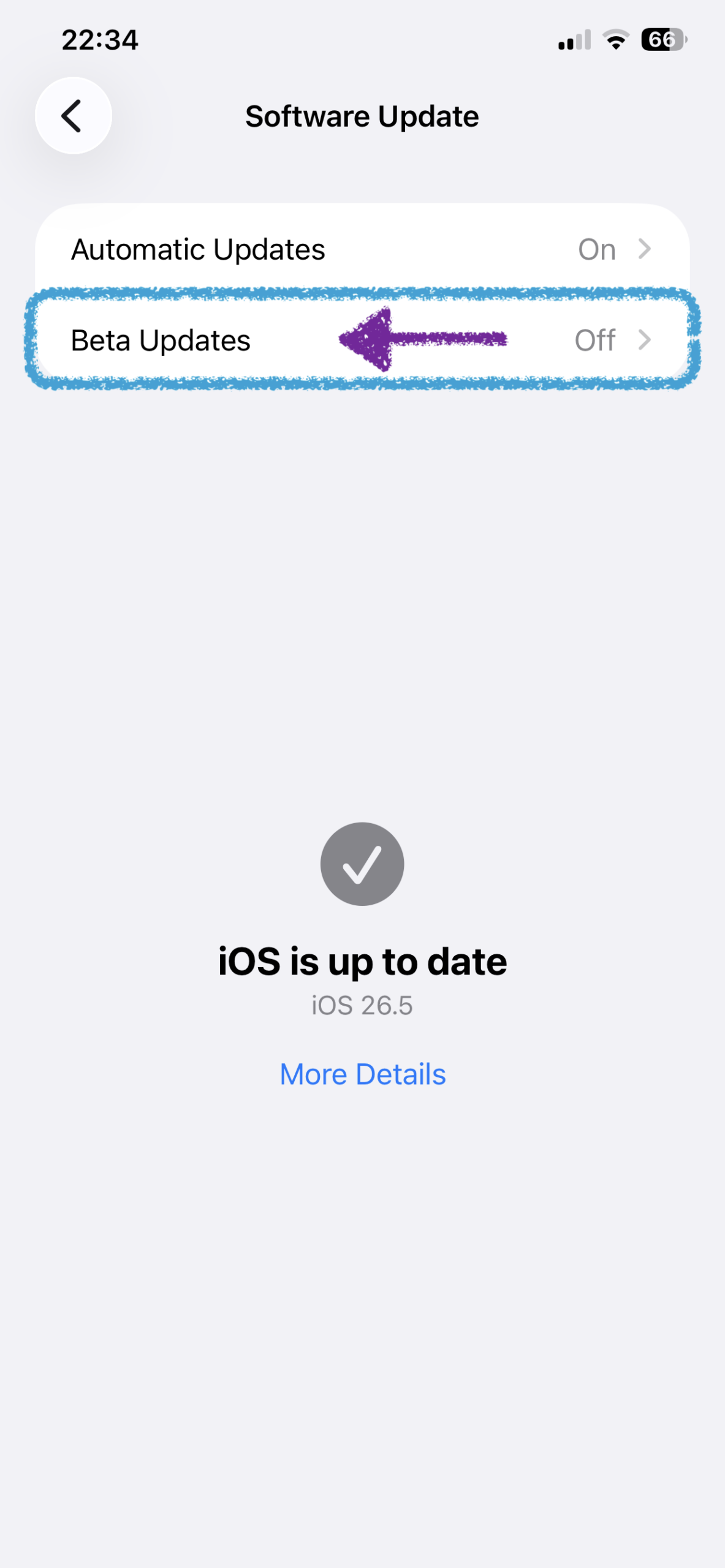
On the Software Update page, tap Beta Updates. This menu allows you to choose which beta update channel your iPhone should use.
If you do not see the Beta Updates option, make sure your Apple ID is enrolled for beta access. Also, wait a few minutes and check again because beta options may not appear immediately for every device.
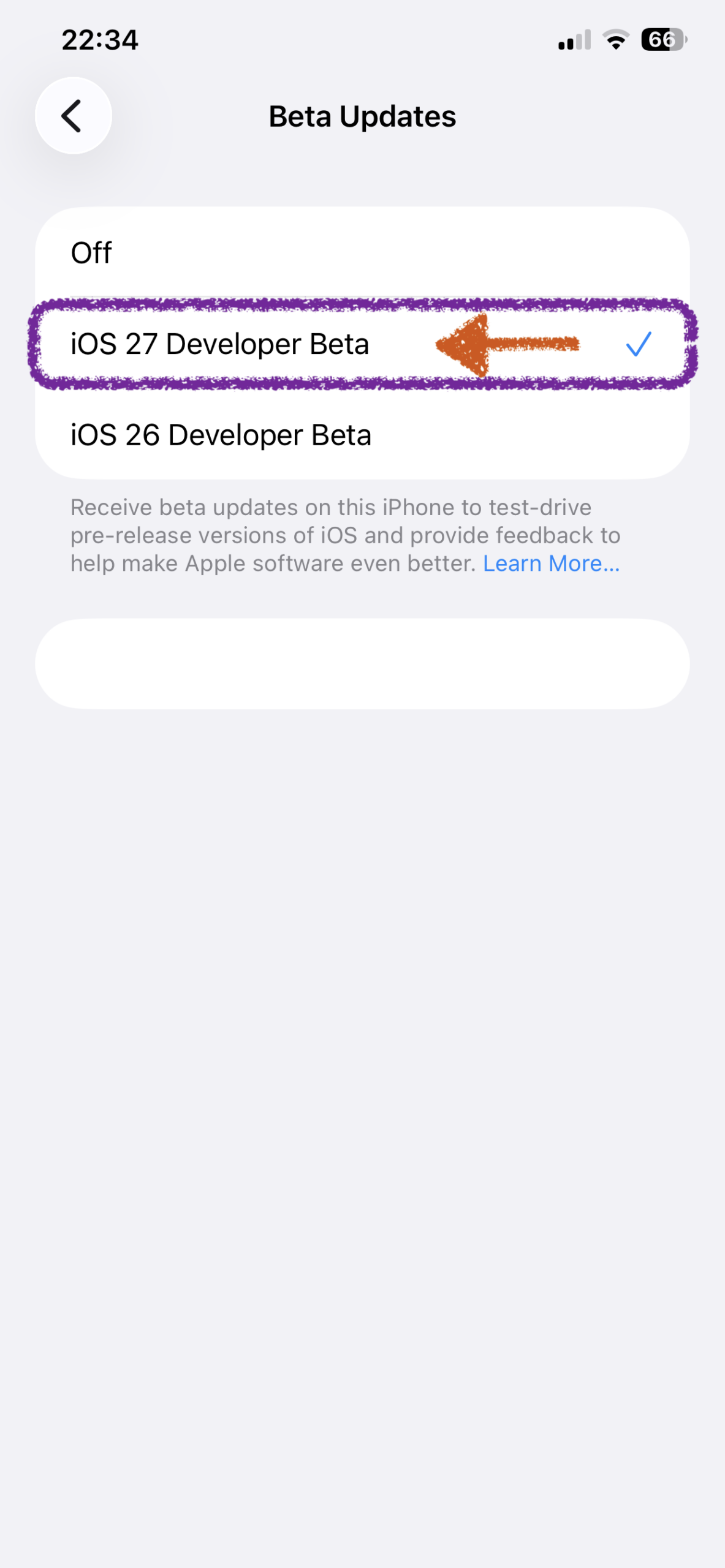
Step 5: Select iOS 27 Developer Beta
Turn On the iOS 27 Beta Channel
From the Beta Updates list, select iOS 27 Developer Beta. After you select it, your iPhone will know that you want to receive iOS 27 beta updates.
Once selected, go back to the Software Update page. As a result, your iPhone should start checking for the iOS 27 Beta update.
Step 6: Download and Install iOS 27 Beta
Go Back to Software Update
After selecting iOS 27 Developer Beta, return to the main Software Update screen. If the beta is available for your iPhone, it should appear there.
Then, tap Download and Install and follow the on-screen instructions. However, sometimes it may take a few minutes for iOS 27 Beta to appear after enabling Beta Updates.
If you do not see the update immediately, wait a little, refresh the Software Update page, and make sure your iPhone has enough storage.
What Is iOS 27 Beta Good For?
Testing New Features Early
iOS 27 Beta is useful if you want to explore Apple’s newest iPhone features before the final release. For developers, it is also useful for testing apps, checking compatibility, and preparing updates before the public launch.
For tech users, beta software can be exciting because it gives early access to changes announced at WWDC 2026. For example, users may want to test new Apple Intelligence features, Siri AI improvements, interface changes, and updated system apps.
Good for Developers and Early Testers
Developers can use iOS 27 Beta to test whether their apps work properly with the new software. Meanwhile, early testers can report bugs and experience Apple’s upcoming features before most users.
Nevertheless, beta software should be treated as testing software, not as a fully finished release.
Why iOS 27 Beta May Not Be Good for Daily Use
Bugs and Battery Issues Can Happen
The biggest risk with iOS 27 Beta is stability. Since it is still being tested, you may experience bugs that would not normally happen on the stable version of iOS.
For example, battery life may be worse, some apps may crash, and certain features may not work properly. In some cases, important apps like banking apps, work apps, or messaging apps may behave unexpectedly.
Your Main iPhone Should Stay Reliable
If you depend on your iPhone every day for work, school, calls, payments, navigation, or important messages, installing beta software can be risky.
Therefore, if possible, install iOS 27 Beta on a secondary iPhone instead of your main device. If you only have one iPhone, make sure you understand the risks before installing the beta.
What If iOS 27 Beta Does Not Appear?
Wait and Check Again
Sometimes the iOS 27 Beta update may not appear immediately after you select the Developer Beta option. This can happen because the update page needs time to refresh.
First, go back to Software Update and wait a few minutes. Then, check again while connected to Wi-Fi.
Check Storage and Apple ID
If the update still does not appear, check your available storage and make sure the correct Apple ID is signed in. In addition, make sure your device is eligible for the beta update.
If your iPhone does not have enough storage, the update may not download even after it appears.
Final Thoughts
iOS 27 Beta Is Exciting, But Be Careful
Downloading iOS 27 Beta on your iPhone is simple once you know where to find Beta Updates. The process starts in Settings, then General, then Software Update, and finally the Beta Updates menu.
However, installing beta software is not the same as installing a normal iOS update. Because iOS 27 Beta is still being tested, it may not be stable enough for every user.
If you decide to install it, back up your iPhone, make sure you have enough storage, and understand that bugs may happen. For more Apple tutorials and WWDC 2026 coverage, visit the Apple category on XFAR .