
How to Change the Theme in Visual Studio Code
Visual Studio Code allows you to quickly switch between light mode, dark mode, and many other color themes. In this beginner-friendly guide, we'll show you how to change your VS Code theme step by step.
Why Change Your VS Code Theme?
Personalize Your Coding Experience
Visual Studio Code includes multiple built-in themes that can change the appearance of the editor. Some developers prefer dark themes because they are easier on the eyes during long coding sessions. Meanwhile, others prefer light themes for readability and a cleaner workspace.
Fortunately, changing the theme only takes a few clicks. Therefore, you can quickly customize VS Code to match your preference.
Step 1: Open the Settings Menu
Click the Gear Icon
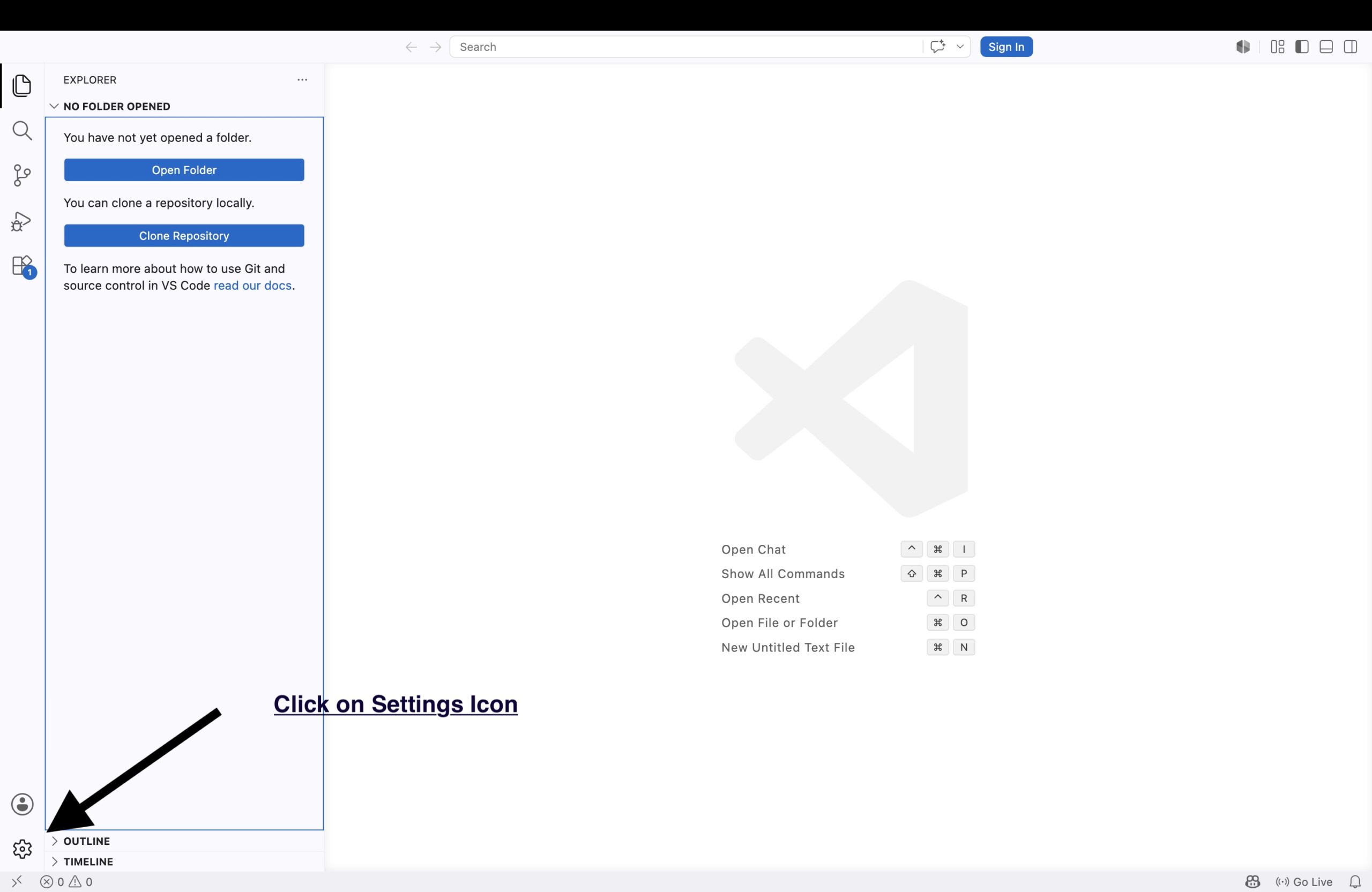
First, look at the bottom-left corner of Visual Studio Code. You will see a small gear icon that opens the settings menu.
Next, click the gear icon to continue.
Step 2: Open Settings
Access VS Code Preferences
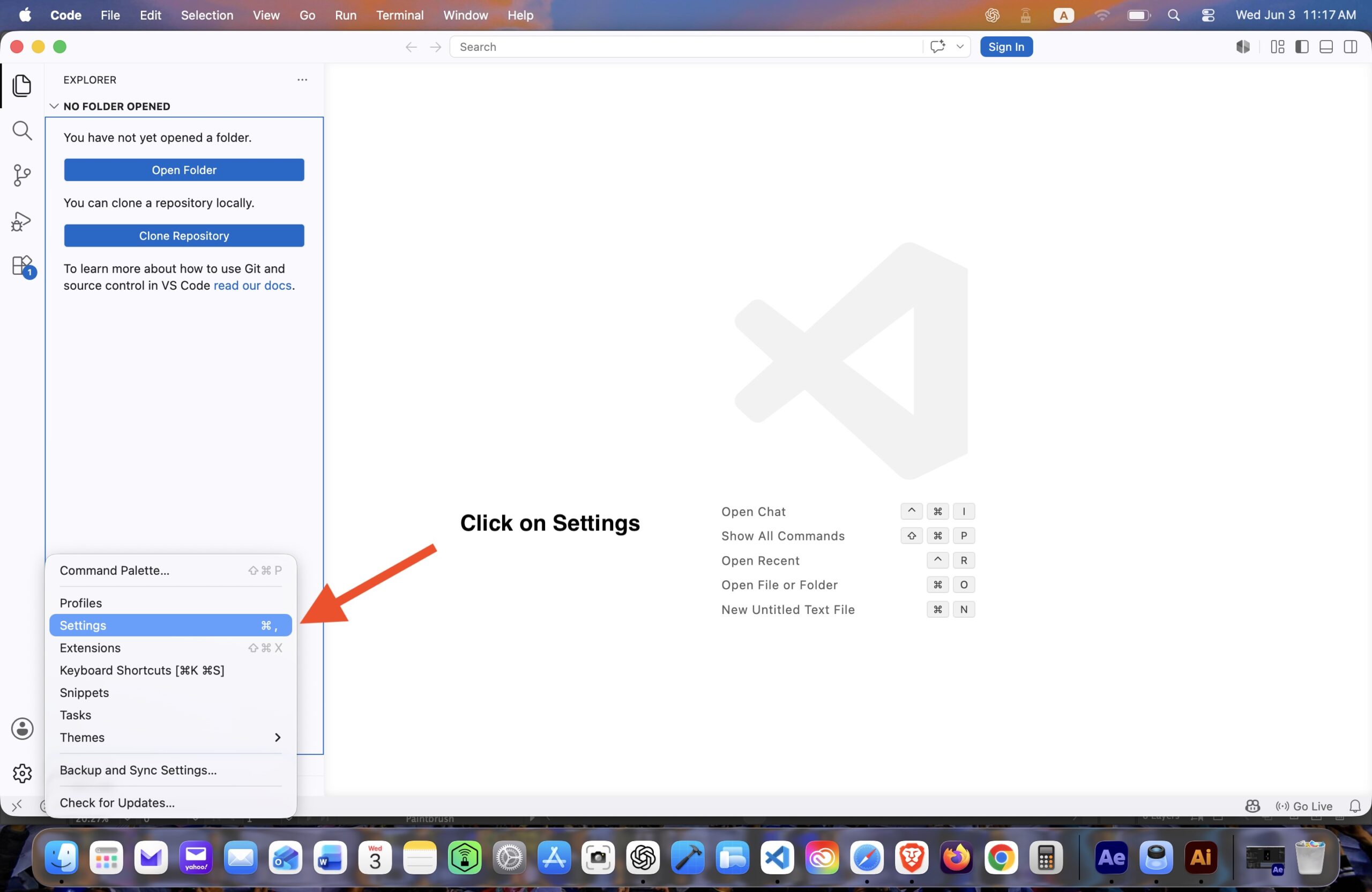
After clicking the gear icon, a menu will appear. Next, click Settings to open the Visual Studio Code settings page.
This page contains all customization options for VS Code. As a result, you can control the editor’s appearance, behavior, extensions, and workspace preferences from one place.
Step 3: Open Appearance Settings
Navigate to Workbench Appearance
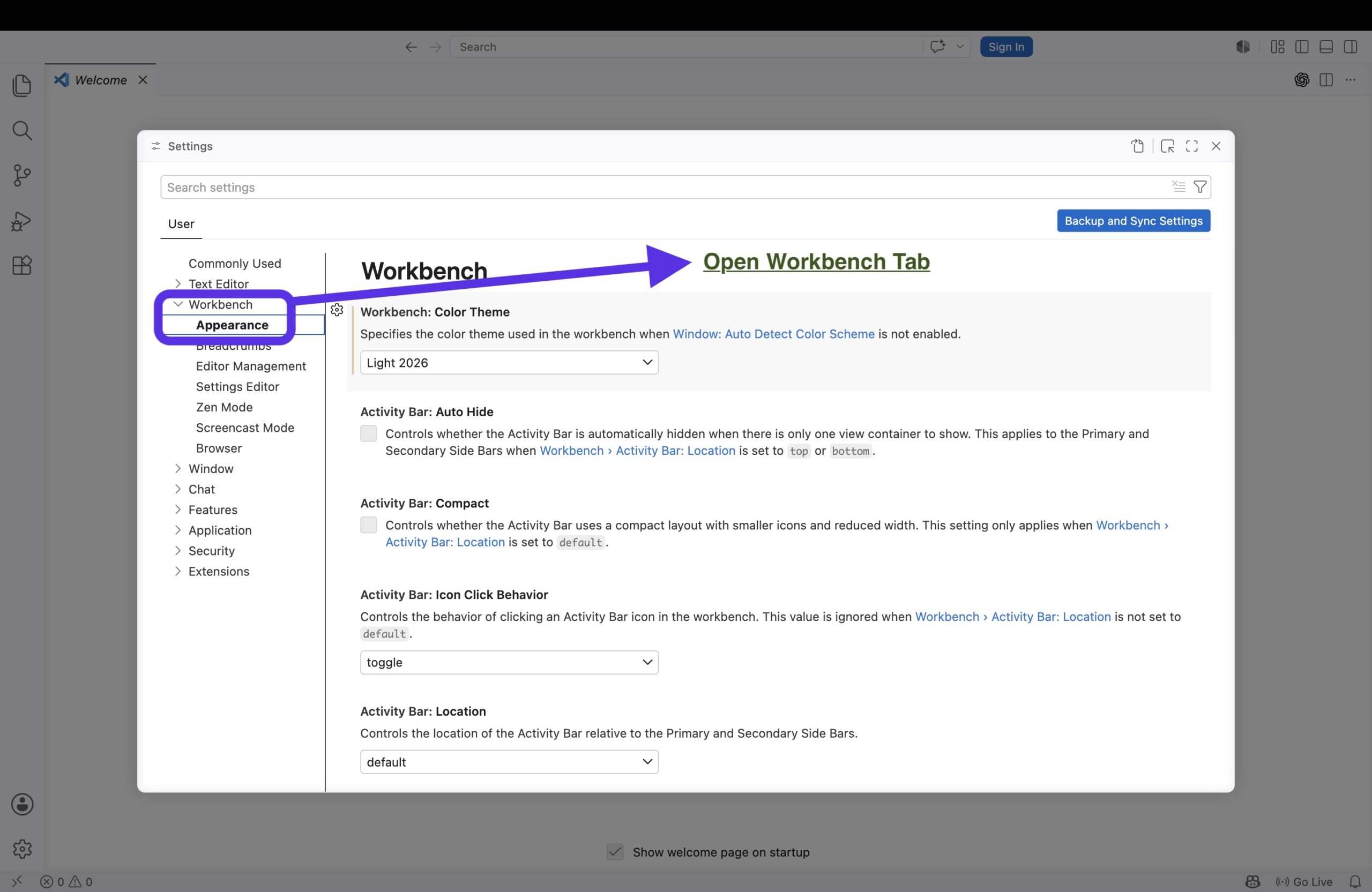
Inside Settings, select the Workbench section. Then click Appearance.
Here you will find options that control the overall look and feel of Visual Studio Code. Therefore, this is the main area to use when changing the editor theme.
Step 4: Select a New Color Theme
Choose Light Mode or Dark Mode
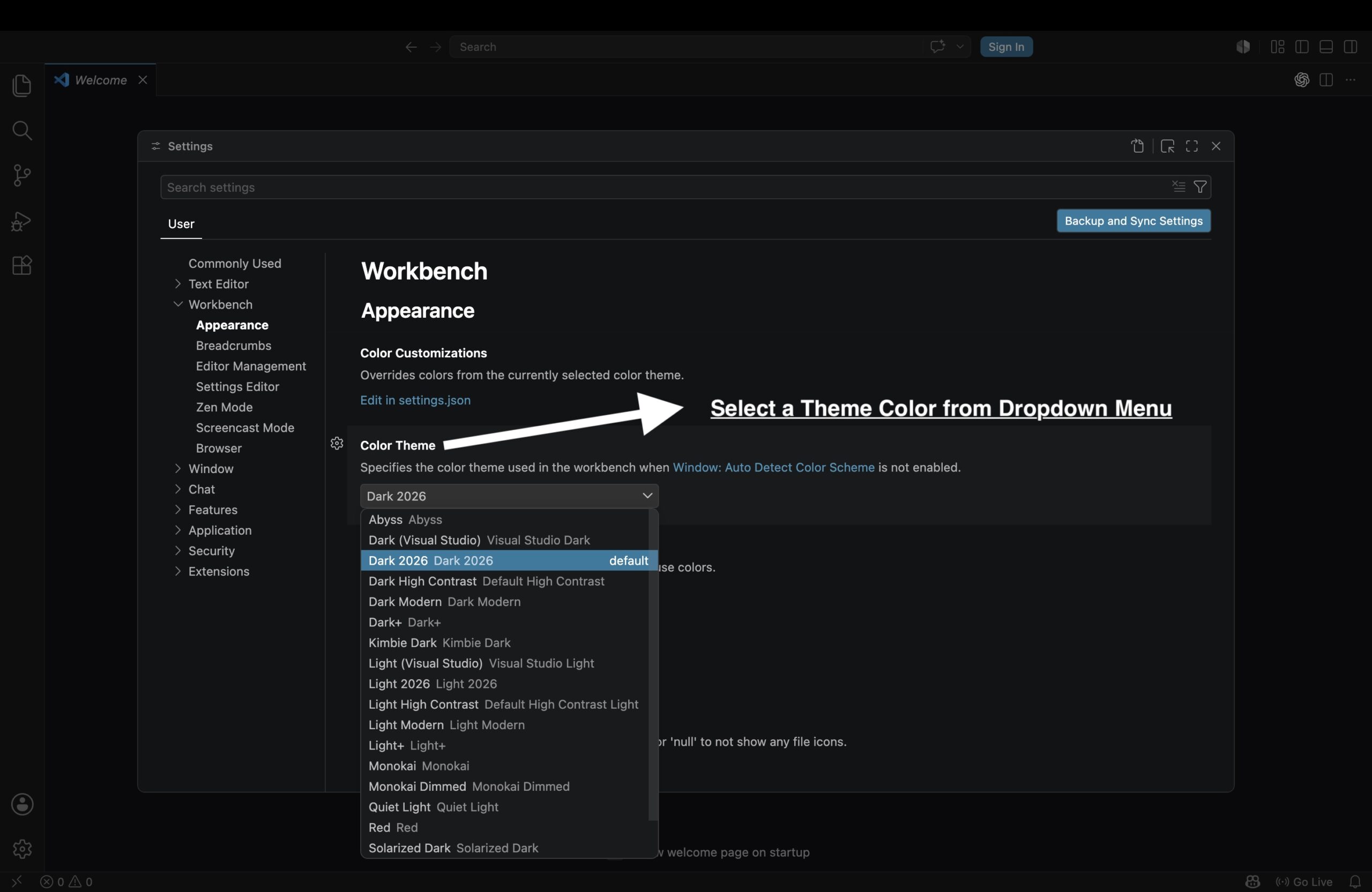
Under the Color Theme section, click the dropdown menu. You can now choose between various themes available in Visual Studio Code.
For example, you can switch from a light theme to a dark theme or explore other built-in options. As a result, you can create a coding environment that feels more comfortable and productive.
Additional VS Code Theme Tips
Explore More Themes
Visual Studio Code also supports thousands of free themes through the Extensions Marketplace. Therefore, if the built-in themes do not match your style, you can install additional themes created by the community.
Popular theme choices include Dark+, GitHub Theme, One Dark Pro, Dracula, and Material Theme.
Customize More Than Colors
In addition to changing the color theme, you can also customize icons, fonts, spacing, and editor behavior. As a result, VS Code can feel more personal and easier to use.
Moreover, combining a good color theme with a clean icon theme can make your workspace look more organized.
Experiment Until You Find the Right One
Every developer has different preferences. Some prefer high contrast themes, while others like softer colors. Because of that, it is worth experimenting with different themes until you find one that fits your workflow.
Common Questions About VS Code Themes
Can I Install Additional Themes?
Yes. In addition to the built-in themes, Visual Studio Code allows you to install thousands of free themes from the Extensions Marketplace. As a result, you can customize the editor far beyond the default options.
Does Changing the Theme Affect Performance?
No. Changing the color theme only affects the appearance of Visual Studio Code. Therefore, it does not significantly impact performance or coding functionality.
Can I Switch Back to the Default Theme?
Absolutely. If you decide you prefer the original appearance, simply return to the Color Theme dropdown and select the default theme again. In other words, you can change your theme anytime.
Final Thoughts
Customize Visual Studio Code in Minutes
Changing the theme in Visual Studio Code is one of the easiest ways to personalize your development environment. Fortunately, the process only takes a few clicks.
Whether you prefer dark mode, light mode, or something in between, VS Code makes it simple to customize the editor to your liking. Ultimately, the best theme is the one that helps you code comfortably.
For more coding tutorials and programming tips, visit the Programming & Development category on XFAR .