
How to Cancel an Adobe Free Trial Subscription
Adobe free trials can turn into paid subscriptions if they are not canceled on time. In this guide, you will learn how to cancel an Adobe free trial subscription through your Adobe account before continuing with a paid plan.
Why Cancel an Adobe Free Trial?
Avoid Unwanted Charges
Adobe offers free trials for many of its creative apps and services. However, if you do not want to continue after the trial period, you should cancel before the subscription becomes paid.
As a result, canceling early can help you avoid unexpected charges while still giving you time to decide whether Adobe is right for you.
“If you no longer need the Adobe trial, canceling before the billing date is the safest option.”
The steps below show how to find your plan, manage it, and cancel the free trial from your Adobe account.
Step 1: Open Your Adobe Account
Click Your Profile Icon
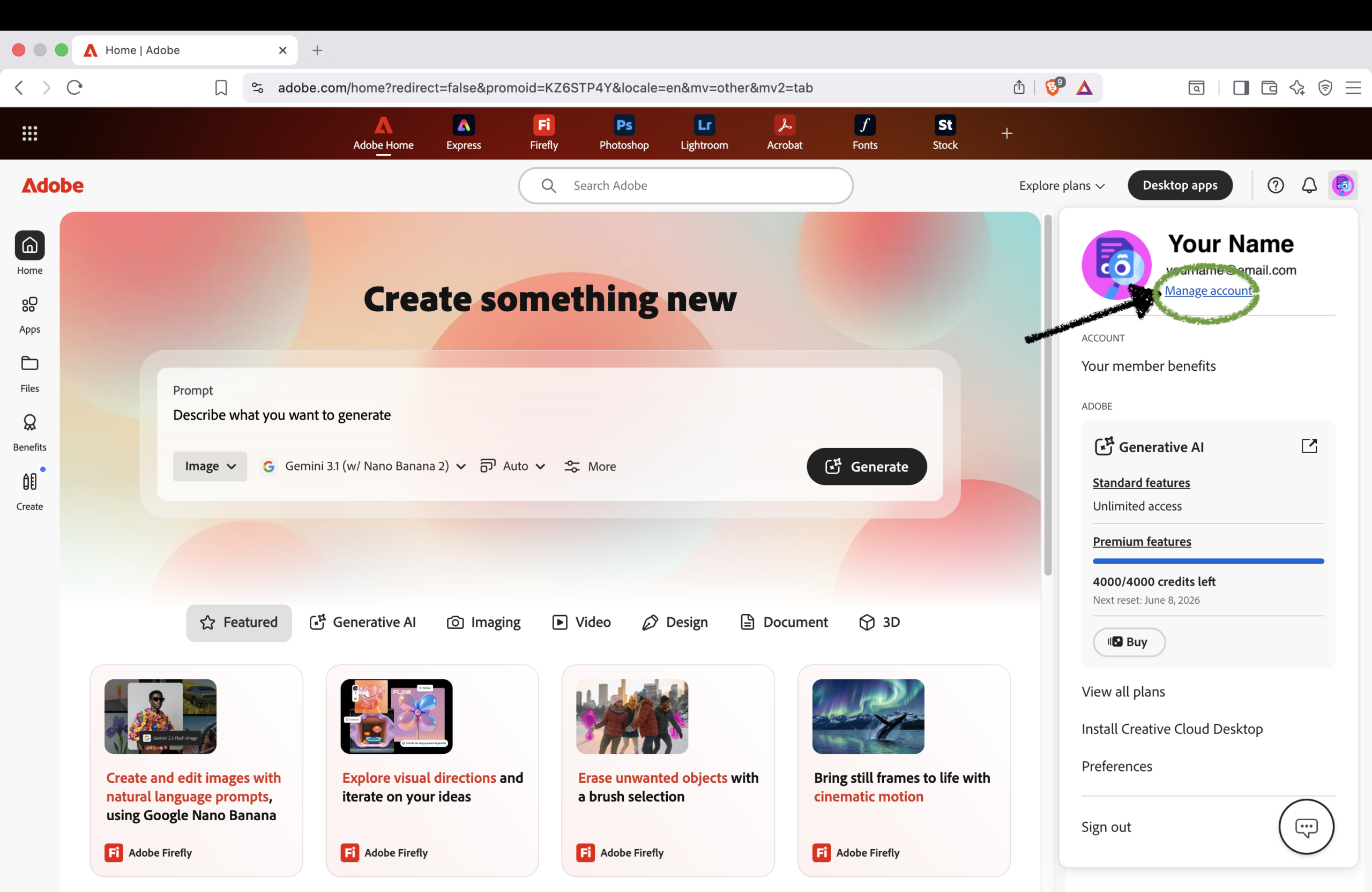
First, sign in to your Adobe account. Then, click your profile icon in the top-right corner of the page.
After the submenu appears, click Manage account. This will take you to your Adobe account dashboard.
Step 2: Click Manage Plan
Open Your Subscription Settings
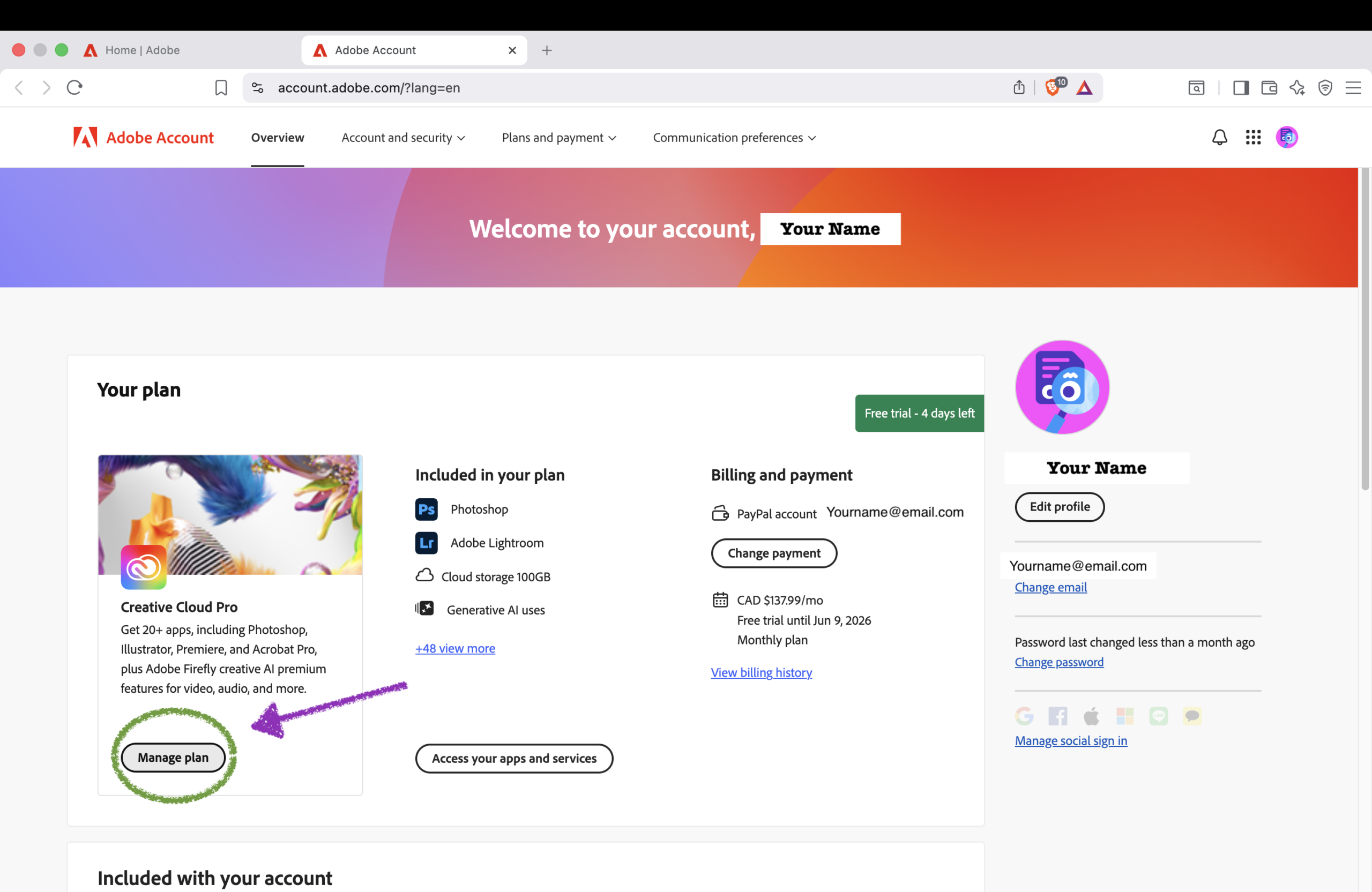
Once you are inside your Adobe account, look for your current plan or free trial. Next, click Manage plan.
This section shows details about your subscription, including the plan name, billing information, and available account options.
Step 3: Choose the Cancel Free Trial Option
Select the Cancellation Choice
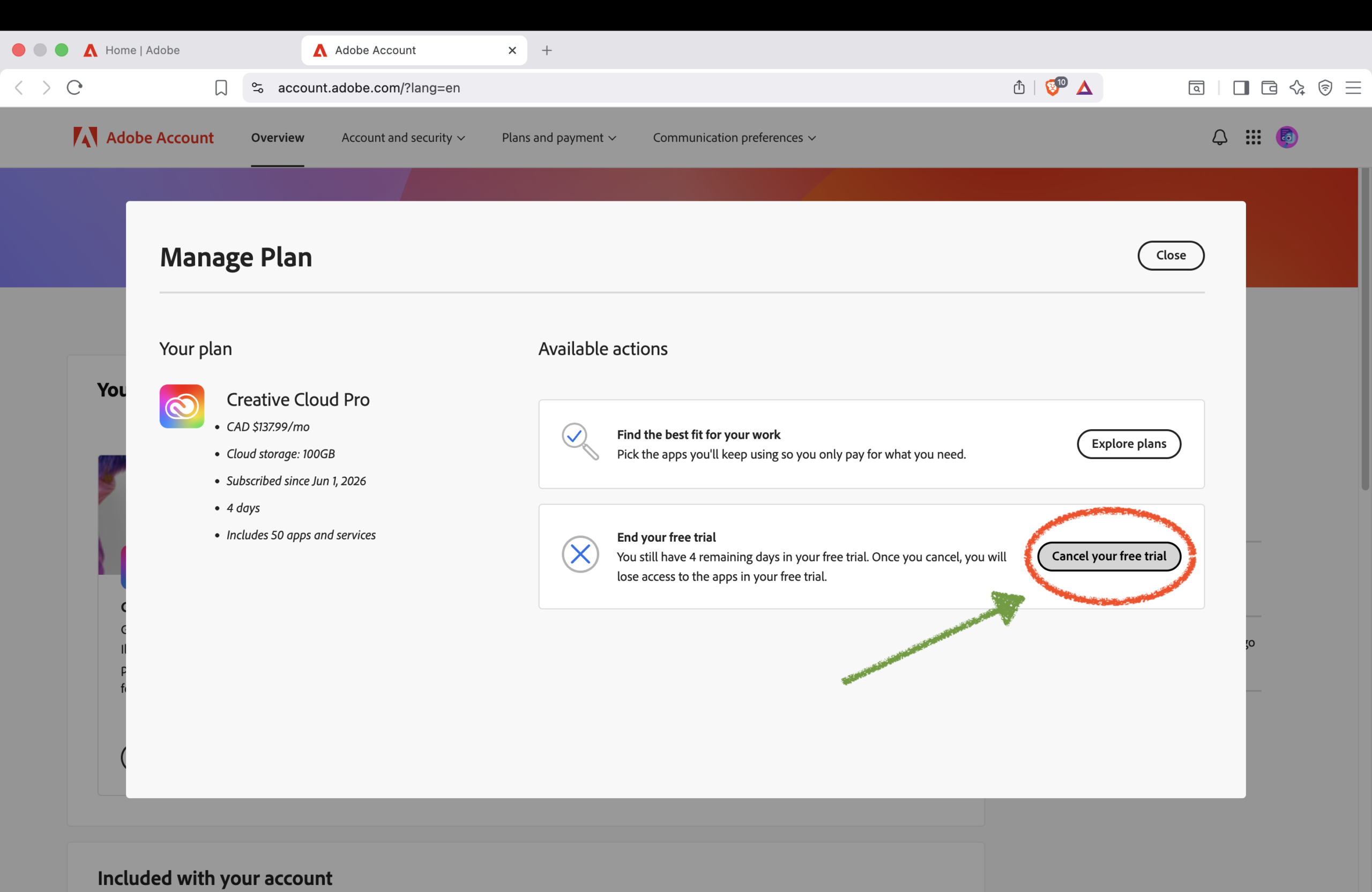
On the next screen, Adobe may show different options. For example, you may see an option to select another plan, choose individual apps such as Photoshop, or cancel your free trial.
If your goal is to stop the trial, choose the option that says Cancel your free trial. However, read the screen carefully before continuing.
Step 4: Review and Confirm Cancellation
Check the Affected Plan and Apps
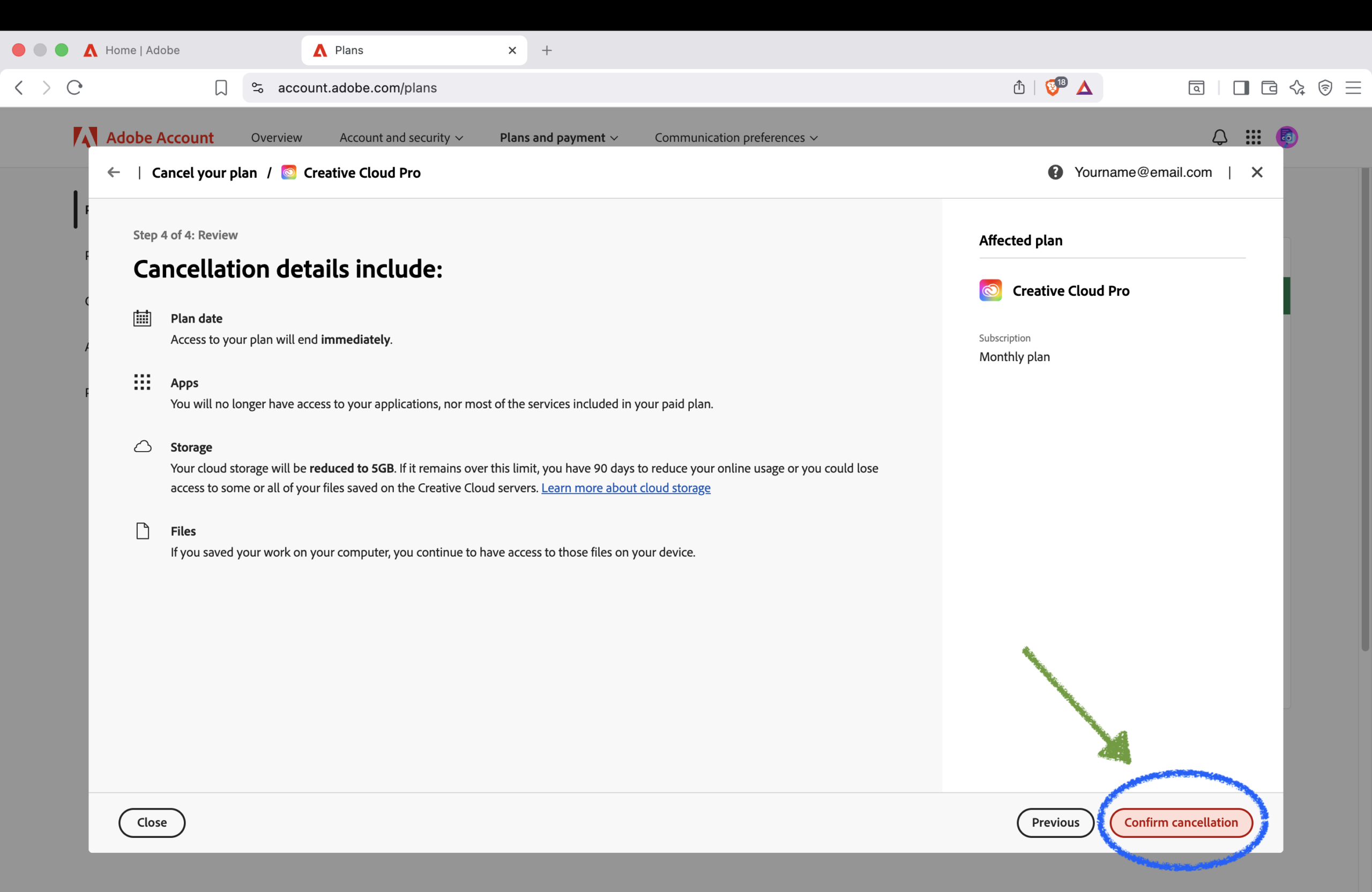
Adobe will show cancellation details before the process is completed. This screen may include the affected plan, the apps included in the subscription, and what access may end after cancellation.
Finally, if you are sure you want to stop the free trial, click Confirm cancellation. After confirmation, Adobe will cancel the trial and your access to the affected apps may end.
Important Notes Before Canceling
Adobe May Ask for a Reason
During the cancellation process, Adobe may ask why you want to cancel. This is common for subscription services, and you can usually choose the reason that matches your situation.
You May See a Discount or Promotion
In some cases, Adobe may offer a discounted price, promotion, or alternative plan before completing the cancellation. Therefore, you may see extra screens before the final confirmation.
Cancellation Can End Access Quickly
Once you confirm cancellation, the free trial may end immediately. As a result, you should save your work and make sure you no longer need access to the included apps before confirming.
Final Thoughts
Cancel Before the Trial Converts
Canceling an Adobe free trial subscription is not difficult, but the process can feel confusing if you have never done it before. Fortunately, the main steps are simple.
Sign in to your Adobe account, open Manage account, click Manage plan, choose the cancellation option, and confirm the cancellation details.
For more practical software guides and technology tutorials, visit the Tech Explained category on XFAR .