
How to Auto Clear Browsing Data When Closing Brave Browser
Brave Browser can automatically delete selected browsing data every time you close the browser. In this beginner-friendly guide, you will learn how to enable auto clear browsing data on exit using Brave’s privacy settings.
Why Auto Clear Browsing Data in Brave?
A Simple Privacy Habit
Brave Browser already includes strong privacy features, but you can make it even cleaner by automatically deleting selected browsing data when you exit the browser.
As a result, Brave can clear items such as browsing history, cookies, cached files, download history, and other site data every time you close the browser.
“When this option is enabled, Brave clears the selected data every time you exit the browser.”
This is useful if you share a computer, want fewer saved traces, or simply prefer a cleaner browsing experience.
Step 1: Open the History Page
Use the Menu in the Top Right
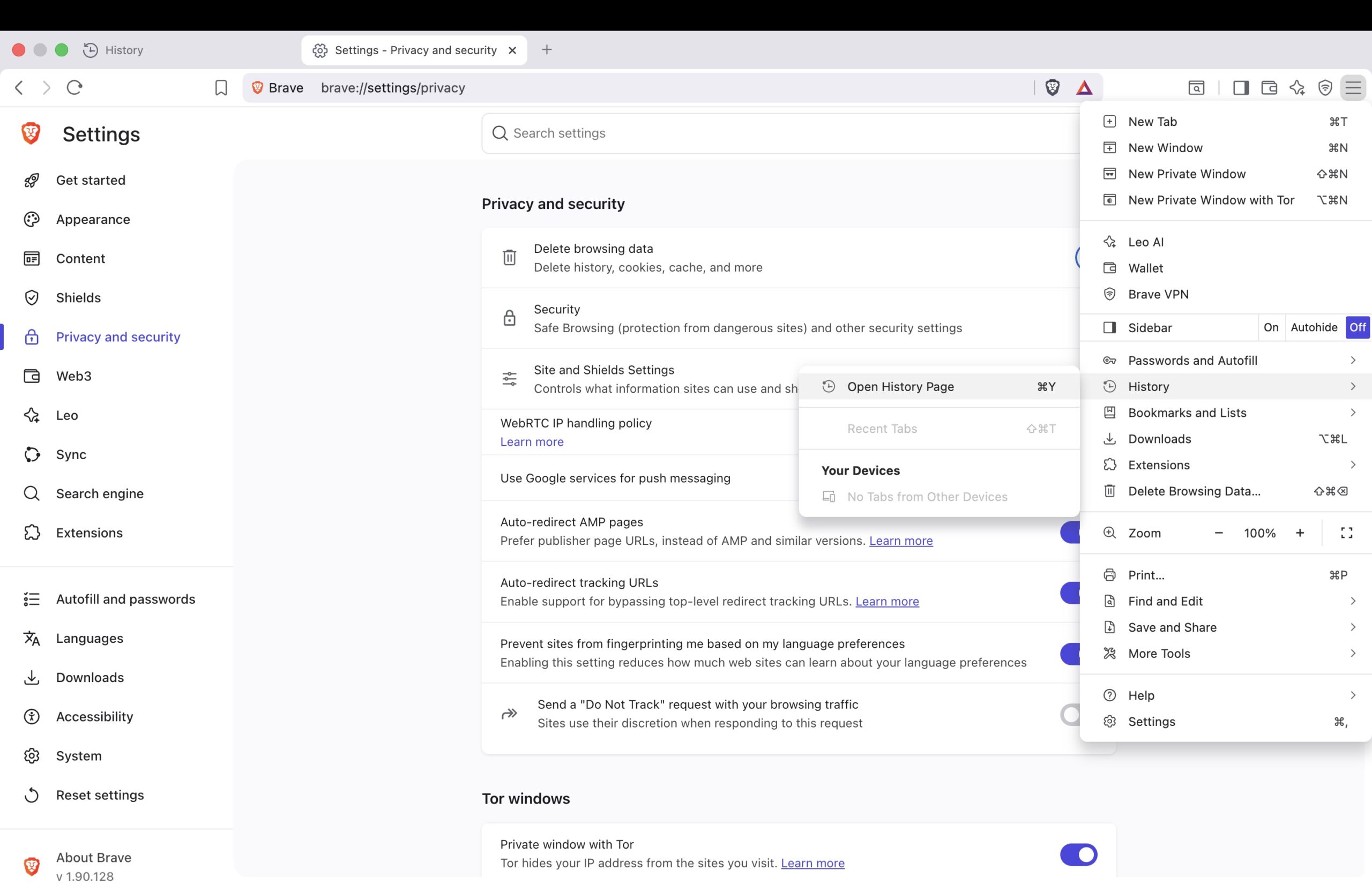
First, open Brave Browser and click the menu icon in the top-right corner. After that, hover your mouse over History.
A second submenu will appear. From that submenu, click Open History Page.
Step 2: Click Delete Browsing Data
Open the Browsing Data Settings
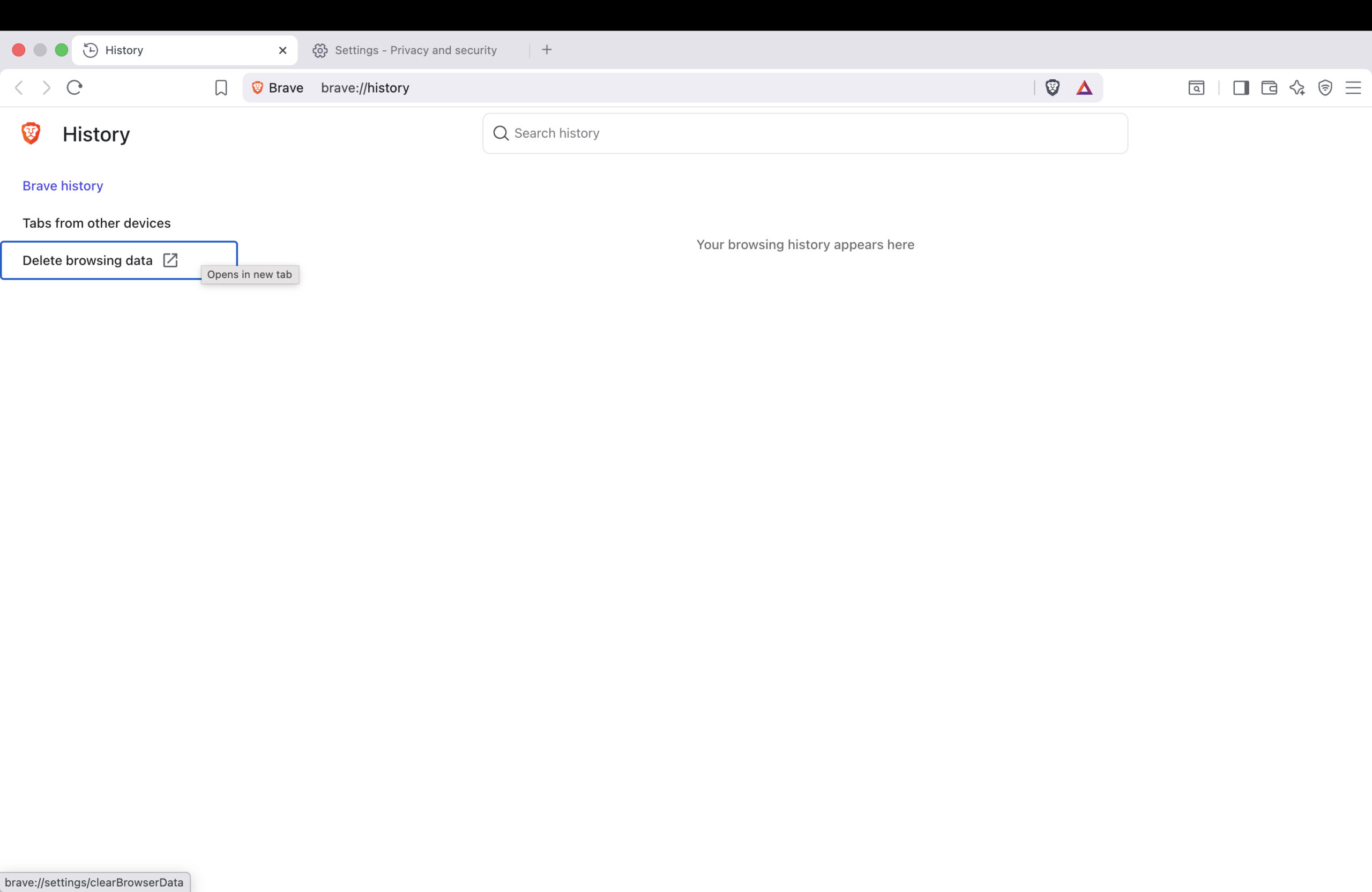
Once the History page opens, look at the left side of the page. You will see an option called Delete browsing data.
Next, click Delete browsing data. This will open Brave’s browsing data controls, where you can choose what Brave should delete.
Step 3: Enable Delete Data on Exit
Select What Brave Should Clear
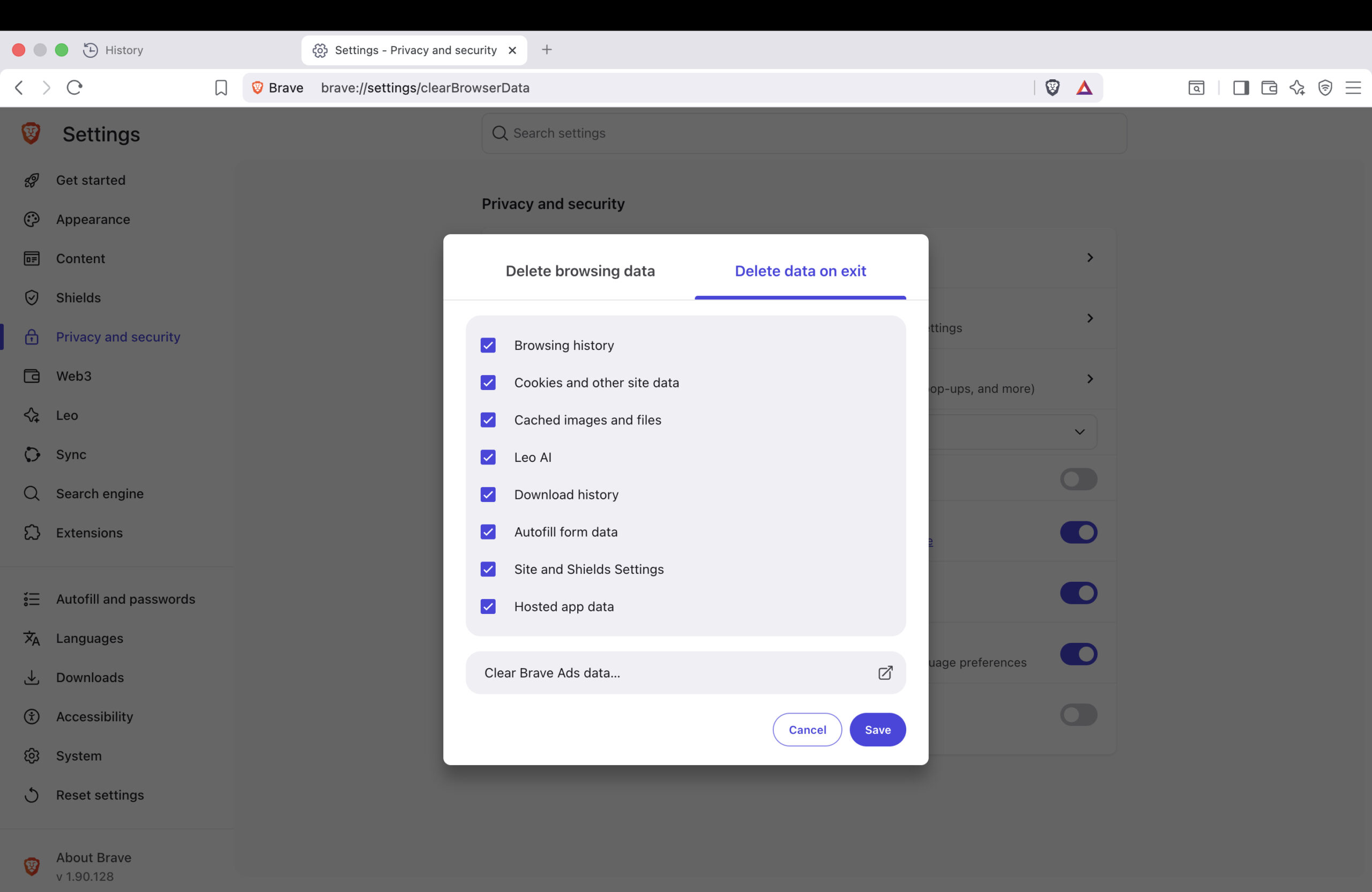
In the Delete browsing data window, click the Delete data on exit tab. This section controls what Brave removes every time you close the browser.
Then, select the data types you want Brave to clear. For maximum privacy, you can select all available options.
- Browsing history
- Cookies and other site data
- Cached images and files
- Leo AI data
- Download history
- Autofill form data
- Site and Shields settings
- Hosted app data
Finally, click Save. After you save the setting, Brave will automatically clear the selected data every time you exit the browser.
Benefits of Auto Clearing Data on Exit
Better Privacy Between Sessions
Auto clearing browsing data can help protect your privacy because websites have less stored information to use across sessions. Therefore, this setting can reduce how much browsing data remains after you close Brave.
A Cleaner Browser Experience
Clearing cached files and browsing history can also keep your browser feeling cleaner. In addition, it can help remove temporary files that build up over time.
Useful for Shared Computers
This feature is especially useful if other people use the same computer. As a result, your browsing history and selected site data are removed automatically when you close Brave.
Things to Keep in Mind
You May Need to Sign In Again
If you choose to clear cookies and other site data, some websites may sign you out after you close Brave. Because of that, you may need to log in again the next time you visit those websites.
Saved Passwords Are Different
This setting does not necessarily mean your saved passwords will be deleted. However, you should always review the selected options carefully before saving.
Choose the Options That Fit Your Needs
For maximum privacy, selecting all options can make sense. However, if you want websites to remember some preferences, you may choose fewer options instead.
Final Thoughts
Brave Makes Privacy Settings Easy
Brave Browser makes it simple to automatically clear browsing data every time you exit the browser. Fortunately, the process only takes a few steps.
First, open the History page. Then, click Delete browsing data. Finally, open the Delete data on exit tab, select the data you want Brave to clear, and click Save.
For more browser tips, privacy guides, and technology tutorials, visit the Tech Explained category on XFAR .